MitoMom Walkthrough
How to download your Advanced Matches CSV
A click-by-click tour of the FamilyTreeDNA pages you'll use. Open FTDNA in another tab and follow along.
1. Sign in to FamilyTreeDNA
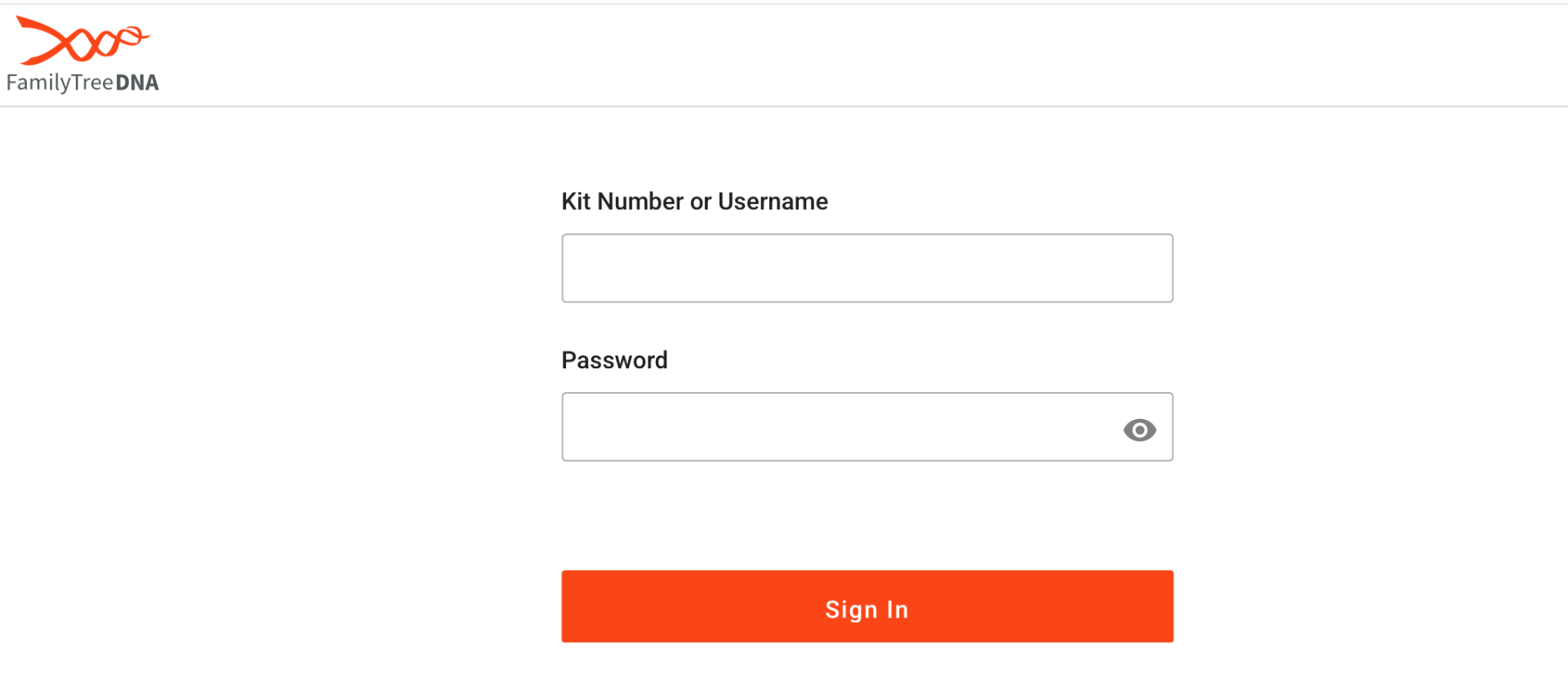
Go to familytreedna.com and sign in with your Kit Number (or Username) and Password. Click the orange Sign In button.
2. Find the Additional Tests & Tools section
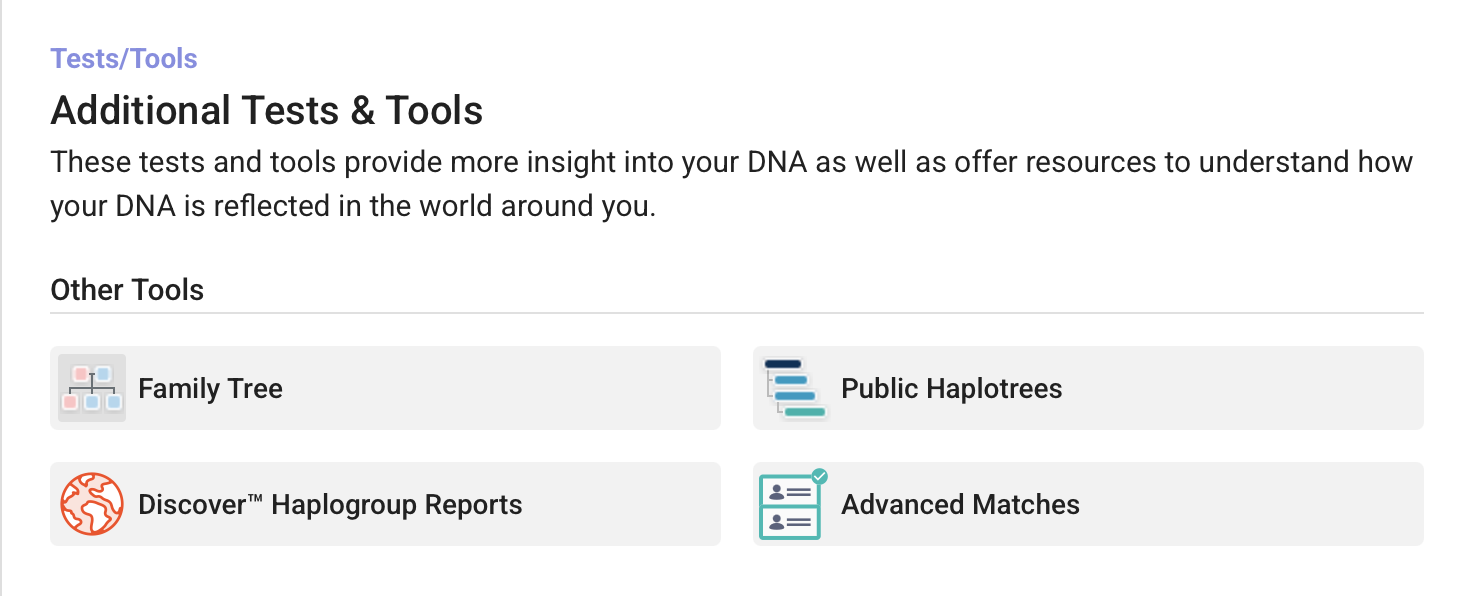
From your dashboard, scroll down to the Tests/Tools area titled Additional Tests & Tools. Under Other Tools, click Advanced Matches.
3. Set the filters and run the report
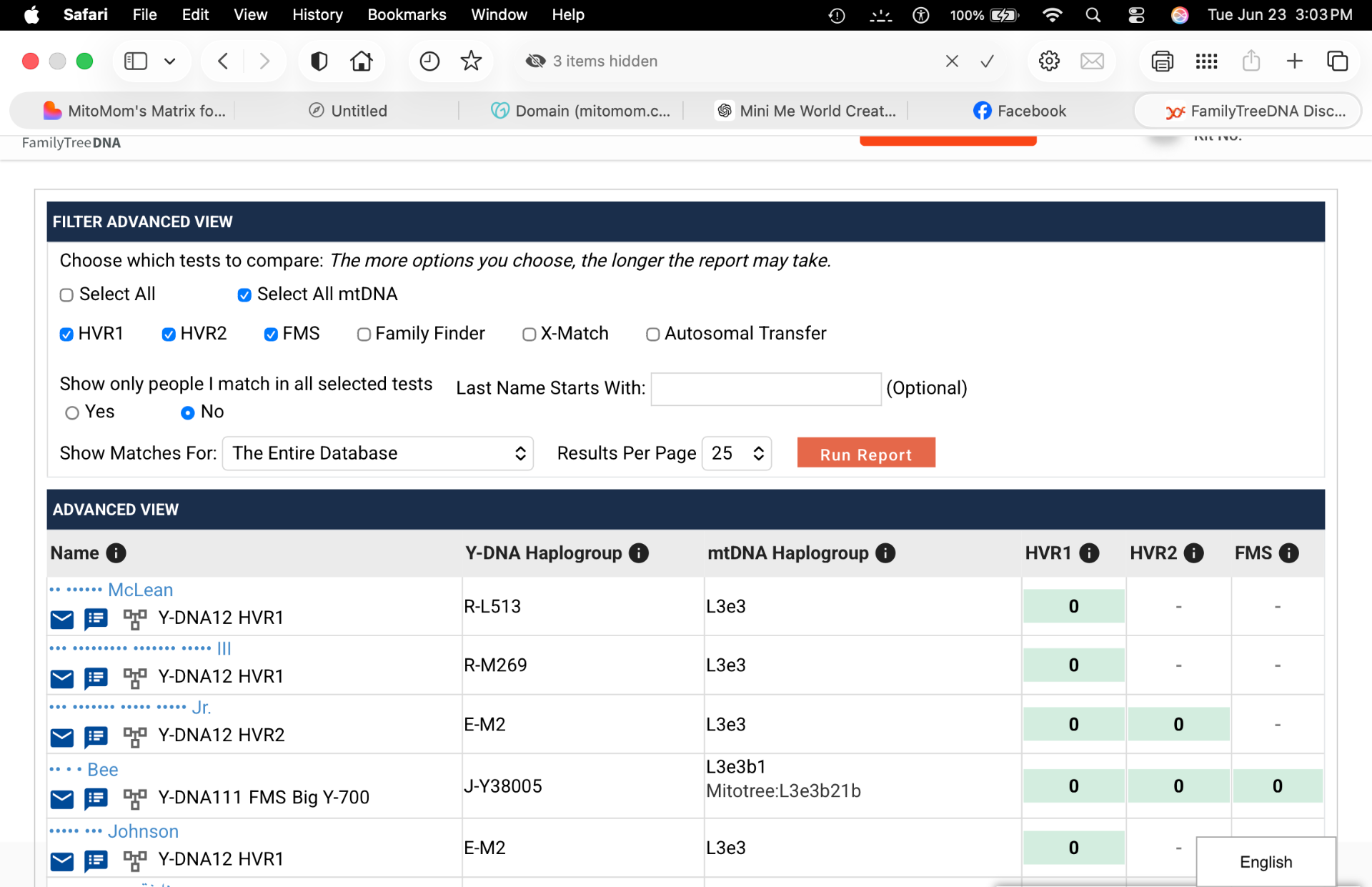
On the Advanced Matches page, check Select All mtDNA (this turns on HVR1, HVR2, and FMS). Leave 'Show only people I match in all selected tests' set to No so you don't miss HVR-only matches. Show Matches For: The Entire Database. Then click the orange Run Report button — the Advanced View table below will load all your mtDNA matches across HVR1, HVR2, and FMS.
4. Download your matches
On the results page, use the CSV / download button to save your Advanced Matches to your computer. (Send me a screenshot of that page and I'll add it here.)
5. Upload the matrix and your matches to an AI
Download the blank Mito Matrix from the home page, then upload BOTH files — the blank matrix and your downloaded Advanced Matches — to an AI assistant (ChatGPT, Claude, Gemini, etc.) and ask it to fill in the matrix for you. Heads up: your AI may ask you to convert the matrix to Excel (.xlsx), CSV, or another format it can edit — that's normal, just follow its instructions.
6. Open the filled-in Mito Matrix
Save the matrix the AI returns, open it, and you're ready to analyze your mtDNA matches.